---
title: Scheduled Gift Invites
description: Schedule gift invites with ease. Upload recipients, set event dates, and automate email delivery for birthdays, anniversaries, and new starters.
---
[Skip to content](https://comms.wellboxes.co.uk/help/scheduled-gift-invites#main-content)
English
Show submenu for translations
[](https://www.wellboxes.co.uk/)
Open main navigation
Close main navigation
- English
Show submenu for translations
How can we help you?
- There are no suggestions because the search field is empty.
1. [WellBox Product Support](https://comms.wellboxes.co.uk/help?hsLang=en)
2. [Sending Gifts](https://comms.wellboxes.co.uk/help/sending-gifts?hsLang=en)
# Scheduled Gift Invites
## Schedule gift invites so they arrive exactly when they matter most, whether for birthdays, anniversaries, or new starters. Upload recipients, set event dates, and automate email delivery in just a few steps.
Automate your gift delivery process so gifts invitations land right on time for birthdays, work anniversaries, or welcoming new starters. Here’s how to set up scheduled deliveries for your recipients.
**Step 1:** Select an **event date** for your gifting campaign. Choose the date that matches your special event, like a birthday or work start date.
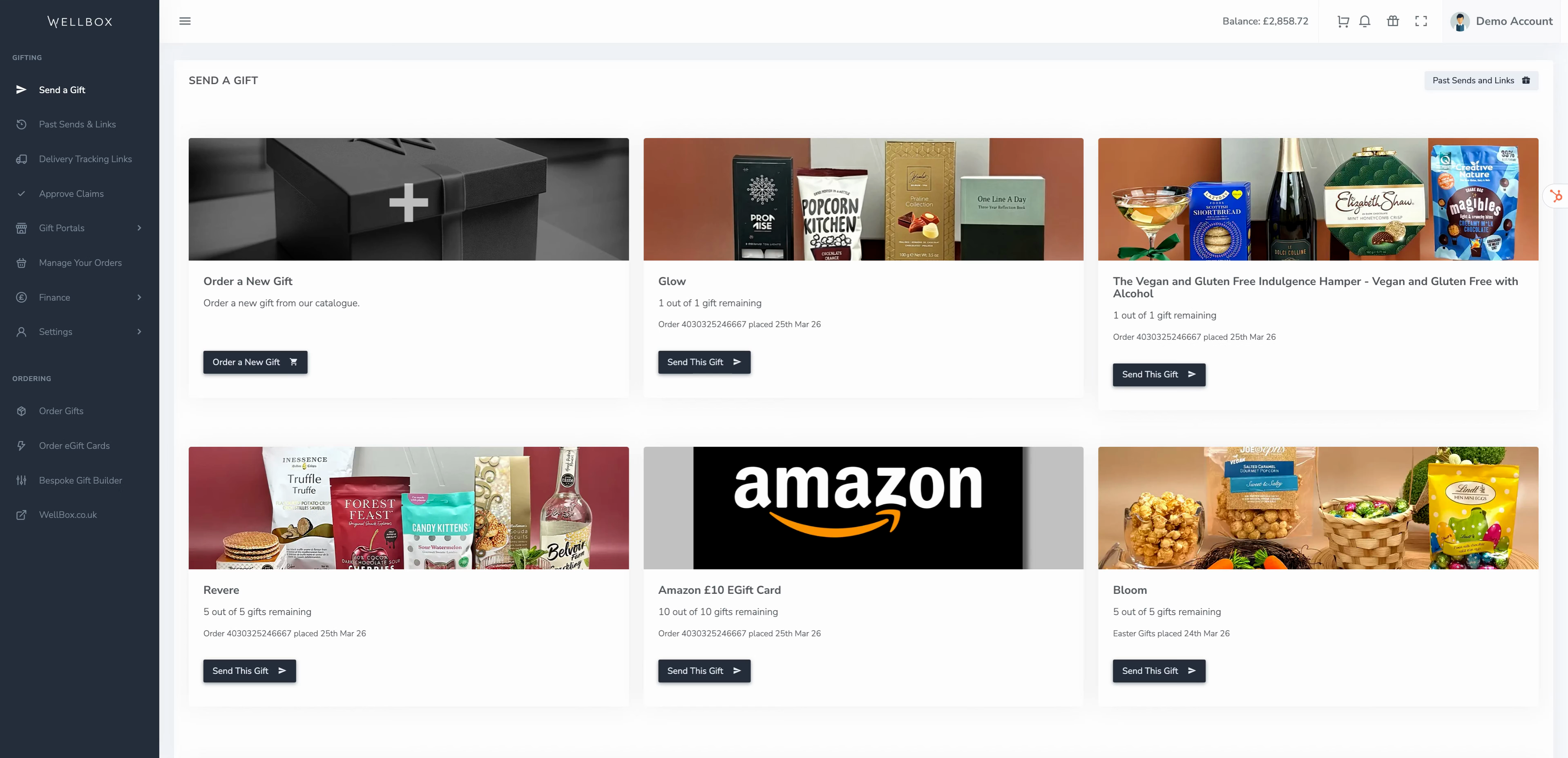
**Step 2:** Pick the **gift** you’d like to send. This could be a physical gift or an e-gift card.
**Step 3:** Choose **Send link by email**. You can add recipients one by one or upload them in bulk.
**Step 4:** If uploading, click **Upload CSV**.
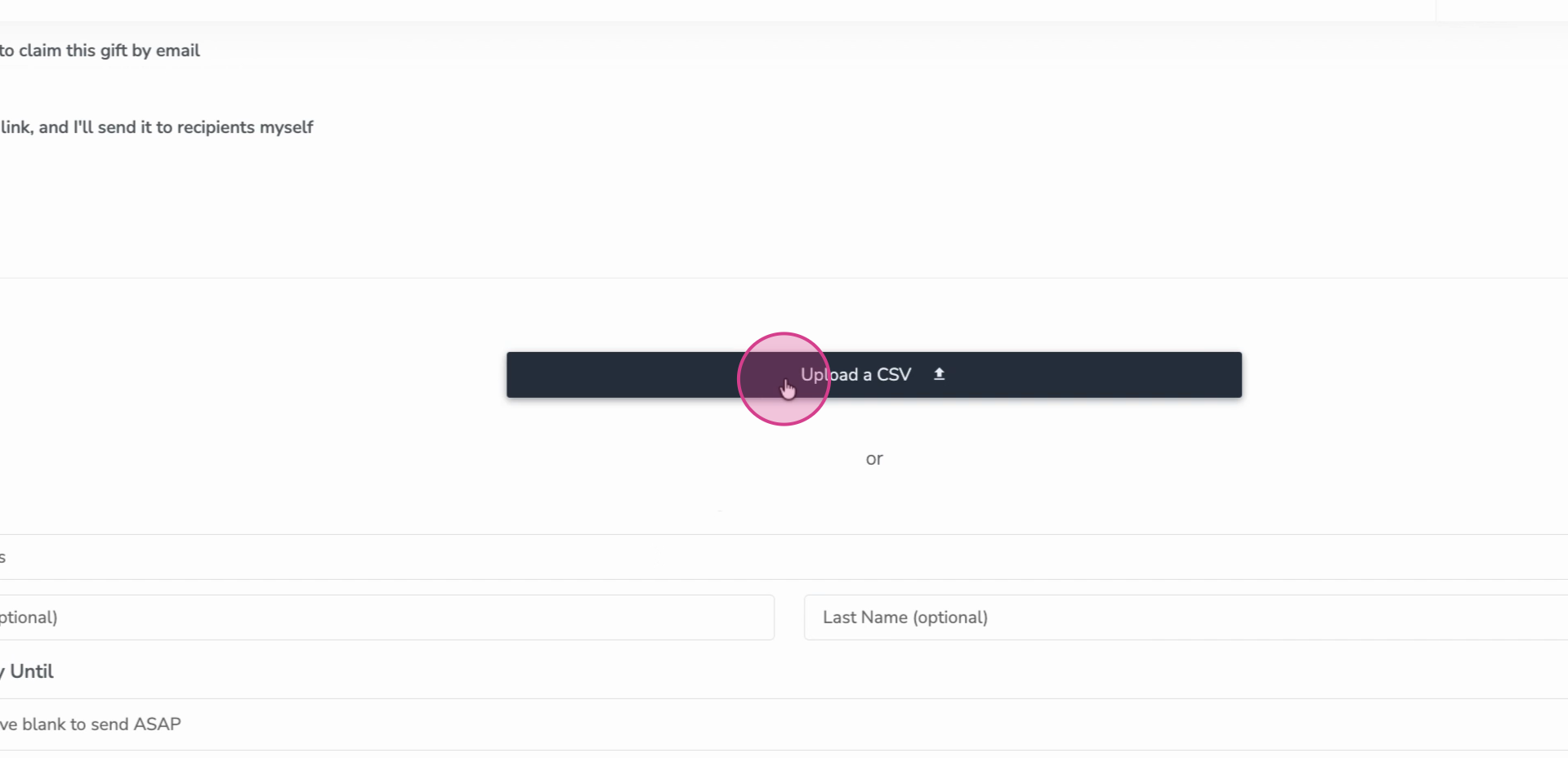
**Step 5:** Select your prepared recipient file. You can make one easily in Google Sheets or similar, then save it as a CSV.
**Step 6:** Use a clear date format—UK date (DD/MM/YYYY) is recommended to avoid confusion.
**Step 7:** Save your spreadsheet as a **CSV** before uploading.
**Step 8:** The system automatically matches your file’s columns to its fields. Check and confirm the mapping.
**Step 9:** Click **Process uploaded file** to review your recipients and their event dates.
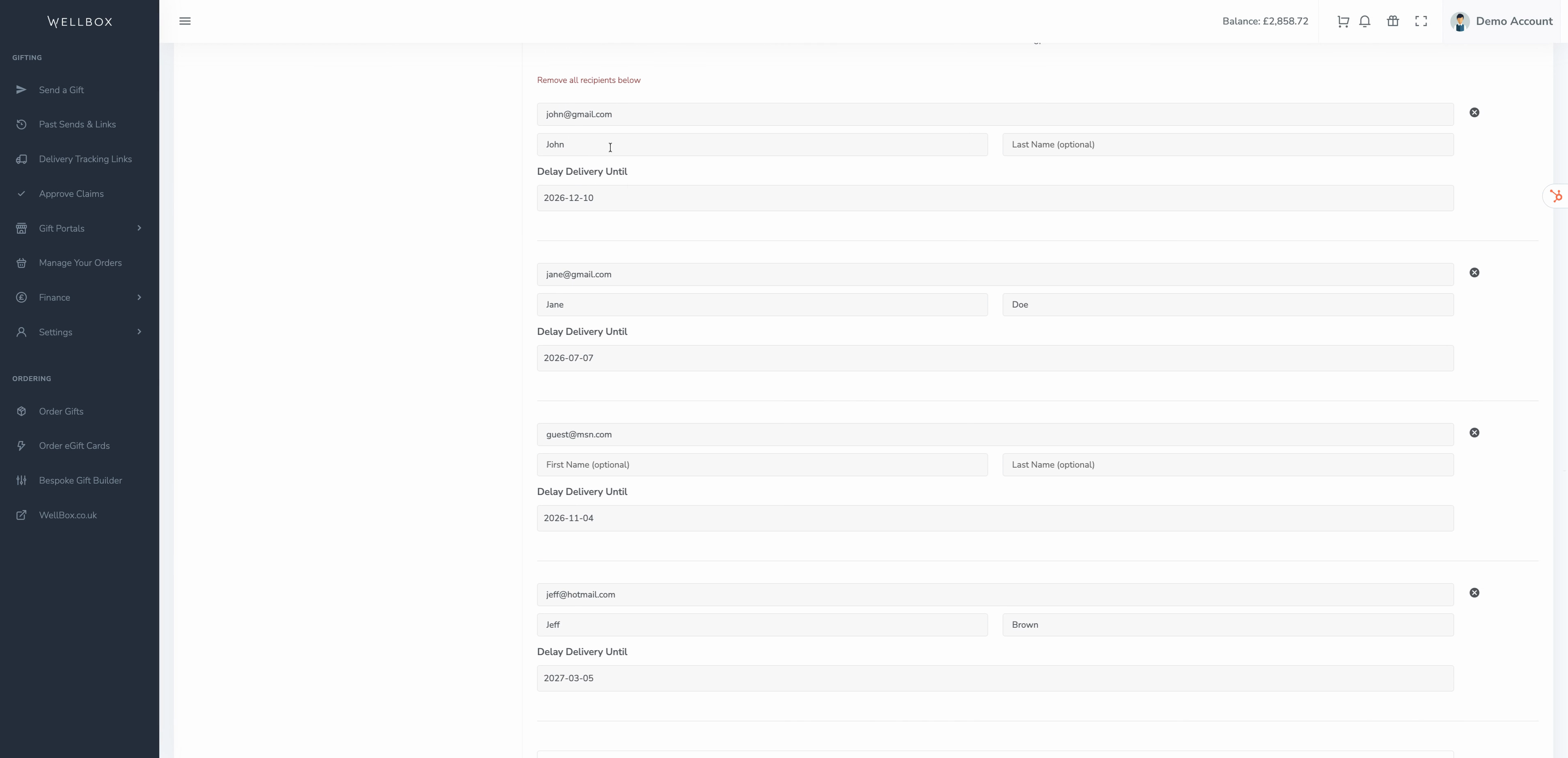
**Step 10:** Any past-dated birthdays or anniversaries will be automatically shifted to the next year.
**Step 11:** Optional: Add an **e-card or message** for your recipients.
**Step 12:** Set the **Email delivery date**. Choose whether the email should be sent on the event date, a number of days before, or as soon as possible.
**Step 13:** If you pick **asap**, the event date will be ignored. To schedule for the event, select the right timing.
**Step 14:** Click **Preview Email and Send** to review your settings.
**Step 15:** Click **Send Gift Redemption Emails** to confirm your order. You'll get a confirmation showing when the emails will go out.
- [Orders](https://comms.wellboxes.co.uk/help/orders?hsLang=en)
- [Delivery and Shipping](https://comms.wellboxes.co.uk/help/delivery-and-shipping?hsLang=en)
- [Sending Gifts](https://comms.wellboxes.co.uk/help/sending-gifts?hsLang=en)
- [Billing and Invoices](https://comms.wellboxes.co.uk/help/billing-and-invoices?hsLang=en)
- [eGift Cards](https://comms.wellboxes.co.uk/help/egift-cards?hsLang=en)
- [Branding and Customisation](https://comms.wellboxes.co.uk/help/branding-and-customisation?hsLang=en)
[](https://www.wellboxes.co.uk)
Unit B, Canalside, John Gilbert Way, Old Trafford, Stretford, Manchester, M17 1UP
Copyright © 2026, WellBox
```json
{
"@context" : "https://schema.org",
"@type" : "VideoObject",
"caption" : {
"@type" : "MediaObject",
"contentUrl" : "https://comms.wellboxes.co.uk/media-transcripts/209985566210/en.vtt",
"inLanguage" : "en",
"name" : "en Captions"
},
"contentUrl" : "https://19495218.fs1.hubspotusercontent-na1.net/hubfs/19495218/video_assets/209985566210/inherited/web_optimized.mp4",
"dateModified" : "2026-03-26T13:42:29.262Z",
"duration" : "PT2M6S",
"height" : 1080,
"name" : "Scheduled Gift Invites",
"thumbnailUrl" : "https://19495218.fs1.hubspotusercontent-na1.net/hubfs/19495218/Videos/Scheduled%20Gift%20Invites.mp4/medium.jpg",
"uploadDate" : "2026-03-26T13:35:06.173Z",
"width" : 1920
}
```